
You’re sitting in your Monday morning marketing meeting, and your boss asks how last month’s campaigns performed. You scramble through spreadsheets, flip between browser tabs, & desperately try to piece together numbers from different platforms. Sound familiar? You’re not alone! This chaotic scenario plays out in marketing departments around the world every single day.
But what if I told you there’s a BETTER way? What if you could have all your marketing data in one beautiful, easy-to-read dashboard that updates automatically? That’s where Google Looker Studio comes to the rescue! This powerful tool transforms the way you look at marketing data by bringing everything together in one place.
In this guide, we’ll walk through creating a data-led digital marketing dashboard that will make you look like a marketing genius. We’ll explore how to connect your data sources, design compelling visualizations, & set up automated reporting that saves you hours each week. Whether you’re managing social media campaigns, Google Ads, email marketing, or website analytics, this dashboard will become your new best friend. By the end of this article, you’ll understand exactly how to build a professional-looking data-led digital marketing dashboard using Google Looker Studio that tells your marketing story with CLARITY & impact.
What is a Data-Led Digital Marketing Dashboard?
Understanding the Foundation of Data-Driven Marketing
Before diving into the technical steps, let’s talk about why building a data-led digital marketing dashboard using Google Looker Studio is absolutely crucial for your success. Think of your marketing efforts as a big puzzle, where each campaign, platform, & channel represents a different piece. Without a dashboard, you’re trying to solve this puzzle while wearing a blindfold!
A data-led approach means making decisions based on actual numbers rather than gut feelings or hunches. When you have all your marketing data flowing into one central location, patterns start to emerge. You might discover that your Instagram posts perform better on Tuesdays, or that email campaigns with specific subject lines drive more conversions. These insights become GOLDMINES for improving your marketing strategy.
Why Choose Google Looker Studio for Your Dashboard
Google Looker Studio (formerly known as Google Data Studio) is perfect for building a data-led digital marketing dashboard because it’s free, user-friendly, & connects seamlessly with most marketing platforms you’re already using. Unlike expensive enterprise solutions that require IT departments & months of setup, Looker Studio can have you up & running in just a few hours. The platform automatically updates your data, which means you’ll always have fresh information at your fingertips. Plus, you can share your dashboard with team members, clients, or stakeholders with just a few clicks, making collaboration effortless.
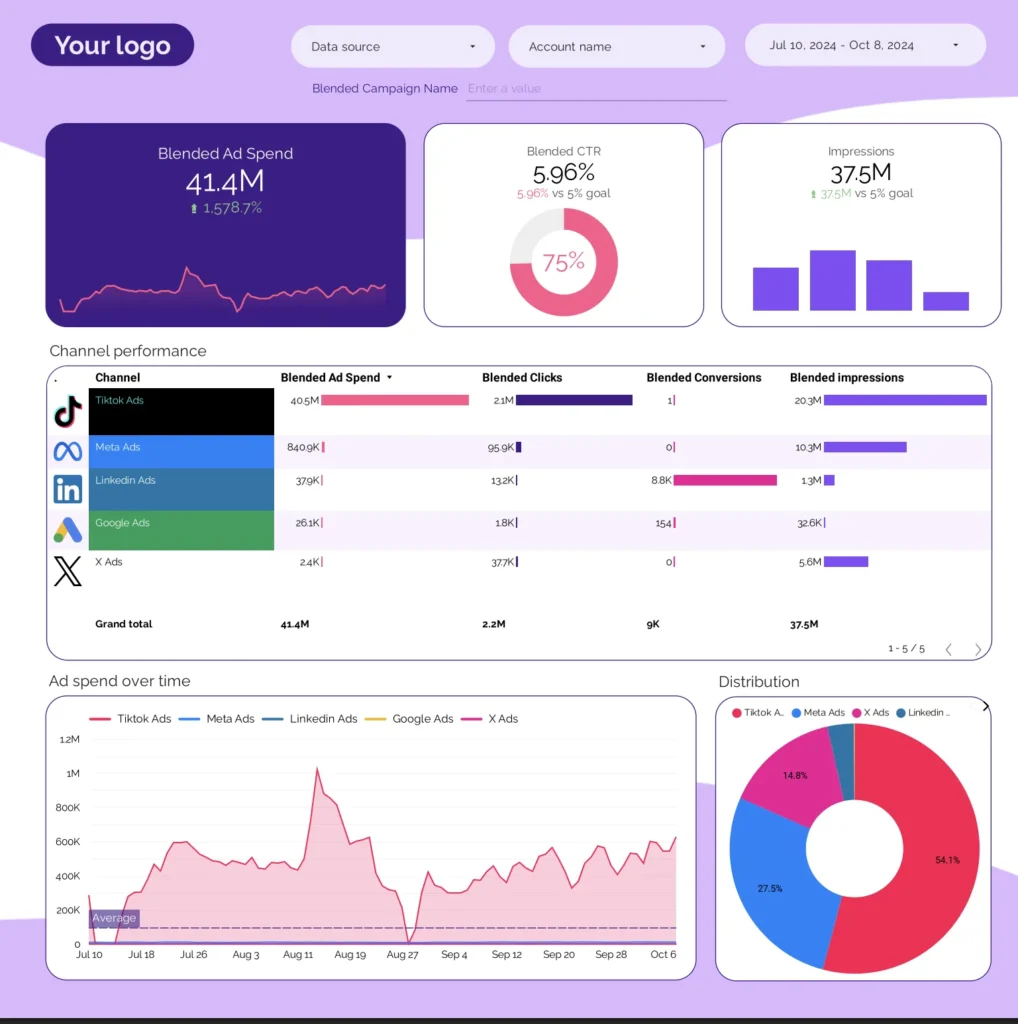
Setting Up Your Data Sources in Google Looker Studio
Identifying Essential Marketing Data Sources
The foundation of any great data-led digital marketing dashboard using Google Looker Studio starts with connecting your data sources properly. This step is CRITICAL because garbage in equals garbage out! You want to make sure you’re pulling clean, accurate data from all your marketing channels.
Start by identifying which platforms generate the most important data for your business. Common sources include Google Analytics for website traffic, Google Ads for paid search performance, Facebook Ads Manager for social media advertising, & email marketing platforms like Mailchimp or Constant Contact. Don’t forget about organic social media metrics from platforms like Instagram, LinkedIn, or Twitter. Each platform tells a different part of your marketing story.
Connecting Data Sources to Your Dashboard
Google Looker Studio offers native connectors for many popular platforms, making the connection process straightforward for your data-led digital marketing dashboard. For Google properties like Analytics & Ads, the integration is seamless – you simply authorize access & select your accounts. For other platforms, you might need third-party connectors or need to export data manually. The key is starting with your most important data sources first, then gradually adding others as you become more comfortable with the platform.
When connecting data sources, pay attention to date ranges & ensure consistency across all platforms. You don’t want to compare Google Ads data from last month with Facebook data from last week! Set up a standard reporting period that makes sense for your business, whether that’s weekly, monthly, or quarterly reviews. This consistency will make your dashboard much more reliable & trustworthy.
Designing Your Data-Led Digital Marketing Dashboard Layout
Creating Visual Hierarchy for Maximum Impact
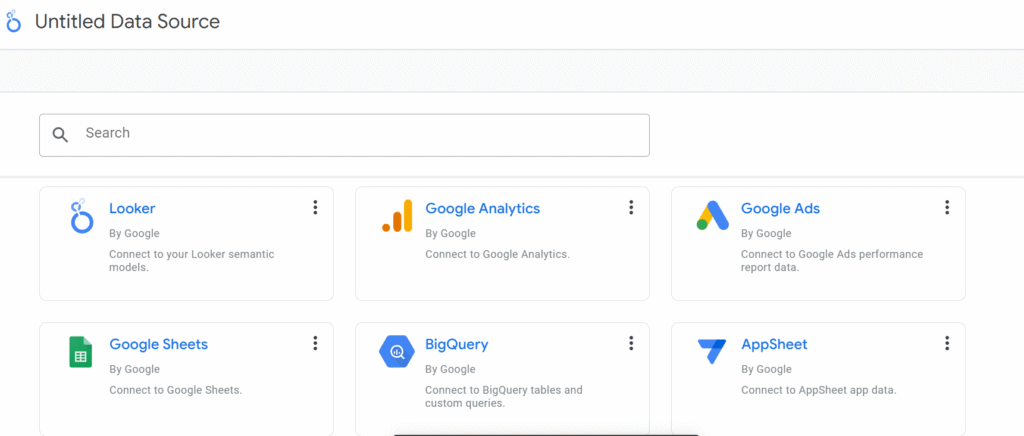
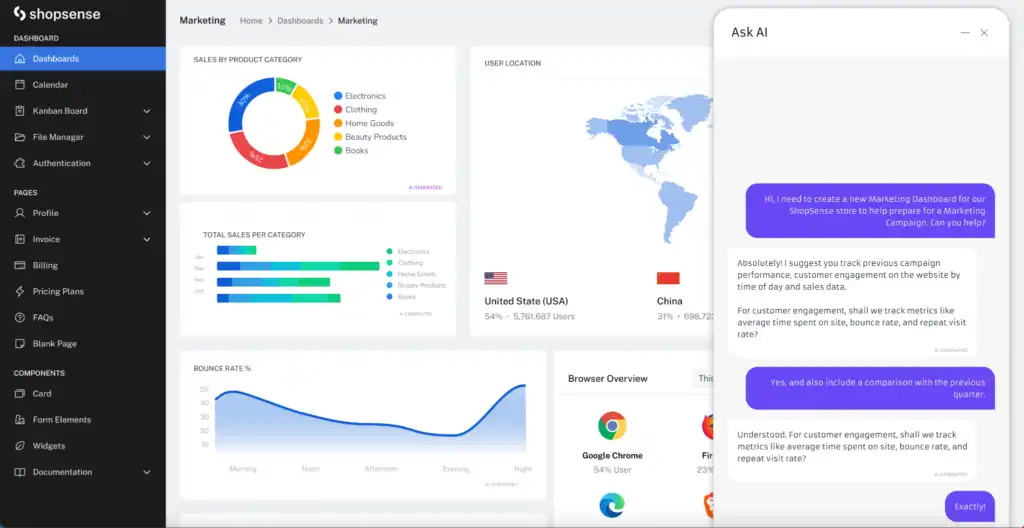
Now comes the FUN part – designing your data-led digital marketing dashboard using Google Looker Studio layout! Think of this as creating a visual story that guides viewers through your marketing performance. The best dashboards don’t just show data; they tell compelling stories that lead to actionable insights.
Start with the big picture metrics at the top of your dashboard. These should be your most important KPIs (Key Performance Indicators) that everyone cares about. Common examples include total website traffic, conversion rates, cost per acquisition, & return on ad spend. Use large, bold numbers that catch attention immediately. These metrics should answer the question: “How are we doing overall?”
Organizing Content by Marketing Channels
Below your headline metrics, create sections for each major marketing channel in your data-led digital marketing dashboard. You might have separate areas for organic search, paid advertising, social media, & email marketing. Within each section, include both performance metrics & trend charts. For example, your Google Ads section might show total spend, impressions, clicks, & conversion rate, along with a line chart showing performance over time. This combination gives viewers both current status & historical context.
Don’t forget about visual hierarchy! Use different chart types strategically – bar charts for comparisons, line charts for trends, pie charts for proportions, & scorecards for single important numbers. Colors should be consistent & meaningful. Consider using green for positive metrics, red for areas needing attention, & blue for neutral information. White space is your friend too; don’t cram every inch of the dashboard with data. Clean, organized layouts are much easier to understand & act upon.
Advanced Features for Your Google Looker Studio Dashboard
Interactive Controls and Calculated Fields
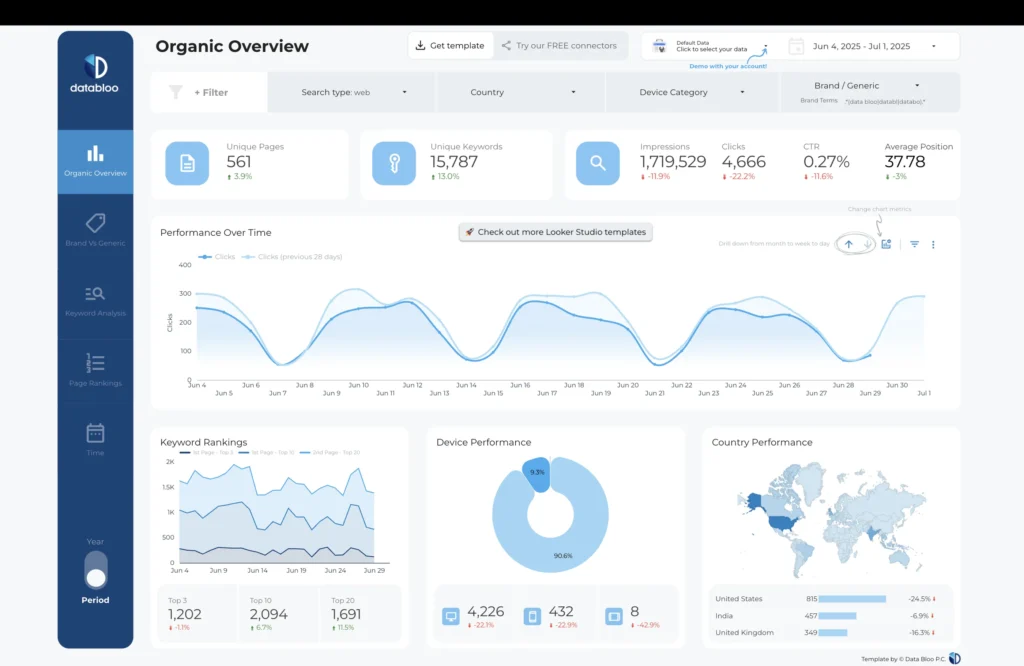
Once you’ve mastered the basics of building a data-led digital marketing dashboard using Google Looker Studio, it’s time to explore more ADVANCED features that can truly set your dashboard apart. These features transform a simple data display into an interactive, insightful tool that drives real business decisions.
Date range controls are absolutely essential for any marketing dashboard. Add interactive date pickers that allow users to explore different time periods without creating multiple dashboard versions. You might set up preset options like “Last 7 Days,” “Last 30 Days,” & “Quarter to Date” for quick access to common reporting periods. This flexibility lets stakeholders dive deeper into specific time frames that interest them most.
Custom Metrics and Filters
Calculated fields open up incredible possibilities for custom metrics that aren’t available in your source data for your data-led digital marketing dashboard. For example, you can create fields that calculate cost per lead, lifetime value ratios, or custom conversion funnels. These calculated metrics often provide the most valuable insights because they’re tailored specifically to your business model & goals. Don’t be intimidated by the formulas – Looker Studio includes helpful documentation & examples.
Filters & controls make your dashboard interactive & personalized for different users. You might add campaign filters that let users focus on specific marketing initiatives, or geographic filters for businesses operating in multiple regions. Drill-down capabilities allow viewers to click on summary data & see more detailed breakdowns. These interactive elements transform passive data viewing into active data exploration, leading to better insights & more informed decisions.
Automation and Sharing Your Dashboard
Setting Up Automated Reports
The real MAGIC of your data-led digital marketing dashboard using Google Looker Studio happens when you set up automation & sharing features that make your dashboard a living, breathing part of your marketing operations. This is where your time investment really pays off, as you’ll save countless hours every week on manual reporting tasks.
Automated email reports are game-changers for keeping stakeholders informed without constant manual work. Set up scheduled emails that deliver dashboard snapshots to key team members, executives, or clients on whatever schedule makes sense – daily, weekly, or monthly. Recipients get fresh data delivered directly to their inbox, & you don’t have to remember to send updates manually. The reports include static images of your charts along with links to the live dashboard for deeper exploration.
Managing Dashboard Access and Permissions
Sharing permissions give you complete control over who sees what information in your data-led digital marketing dashboard. You can create viewer-only access for stakeholders who need to see results but shouldn’t edit the dashboard structure. Editor access works well for team members who need to modify charts or add new data sources. You can even create multiple versions of the same dashboard with different permission levels – perhaps a detailed version for the marketing team & a high-level executive summary for leadership.
Consider creating mobile-optimized versions of your most important dashboards. Many business leaders check performance metrics on their phones during commutes or travel. Looker Studio automatically adapts to different screen sizes, but you can optimize layouts specifically for mobile viewing by prioritizing the most critical metrics & simplifying complex visualizations.
Conclusion: Mastering Your Data-Led Digital Marketing Dashboard
Building a data-led digital marketing dashboard using Google Looker Studio isn’t just about creating pretty charts – it’s about fundamentally changing how you approach marketing decisions. When you have reliable, up-to-date information at your fingertips, you stop guessing & start knowing what actually works for your business.
The dashboard you’ve learned to build today will become an invaluable asset that grows with your marketing efforts. As you add new campaigns, platforms, & strategies, your dashboard can expand to accommodate fresh data sources & metrics. The time you invest in setting up proper data connections, thoughtful visualizations, & automated reporting will pay dividends for months & years to come.
Remember, the most POWERFUL data-led digital marketing dashboard using Google Looker Studio is the one that actually gets used! Start simple with your most important metrics, then gradually add complexity as you & your team become comfortable with the platform. Share your creation with colleagues, gather feedback, & continuously improve the design based on real-world usage. The goal is creating a tool that genuinely helps people make better marketing decisions, not just impressing them with fancy charts.
Take action today by identifying your top three data sources & creating your first basic dashboard. Once you experience the clarity & confidence that comes from data-driven marketing insights, you’ll wonder how you ever managed without it. Your future self will thank you for taking this important step toward marketing excellence with your new data-led digital marketing dashboard using Google Looker Studio!


Your article helped me a lot, is there any more related content? Thanks! https://accounts.binance.com/register-person?ref=IHJUI7TF